Capture the spark.
Keep the moment.
Ideas worth sharing. Moments worth replaying.
Turn what happens on your screen into something you can keep.
Windows x64 · Latest stable release · Getting size… · Installer
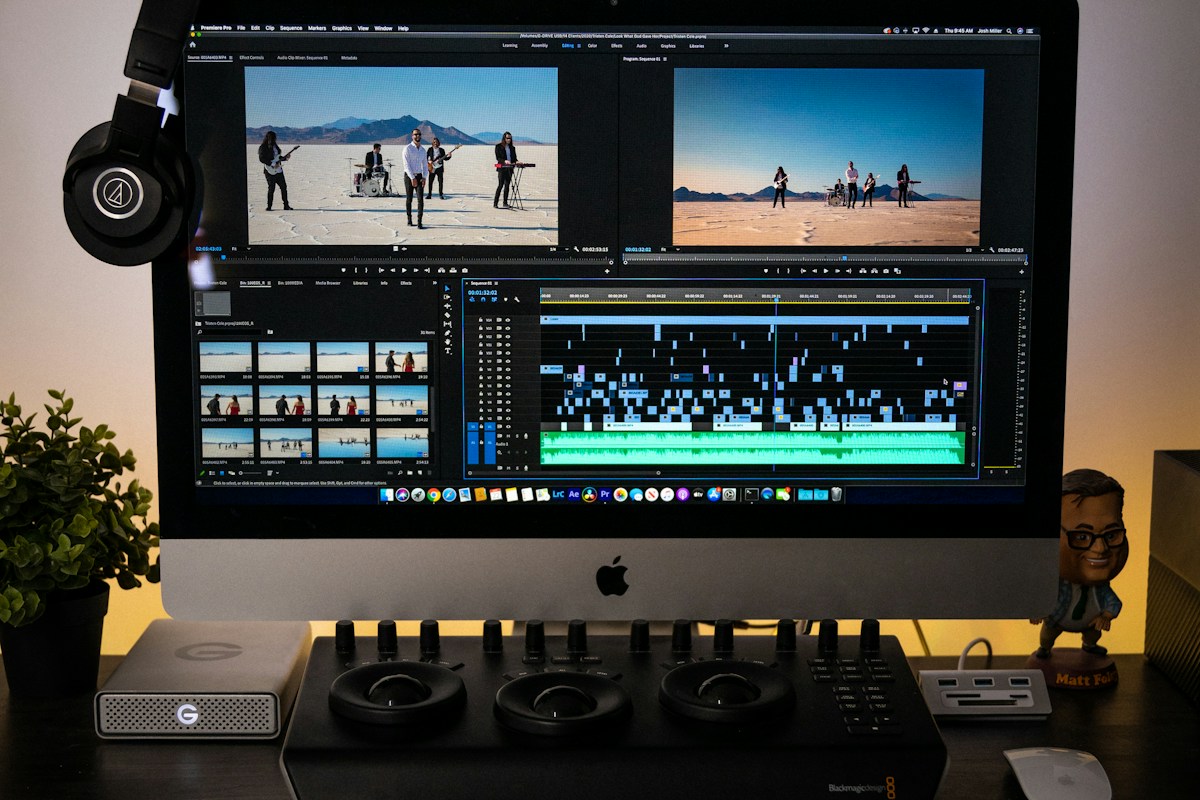
YOUR SCREEN. YOUR STORY. / CATEYE
Whatever you create.
Make it a keeper.
Learning, teaching, playing.
A simple way to keep what matters on your screen.

Record computer audio, your microphone, both together, or mute. Audio and video pause together. Choose the source that fits your class, meeting or tutorial.
Less in your way.
More room to create.
Picture and sound. Together.
Computer audio, microphone or both. Pause picture and sound together, or choose mute for video only.
A clean frame. Just your work.
No logo overlays or watermarks. Your video is ready to use when it is saved.
Choose a frame. Hit record.
Capture the full screen or drag a rectangle. Open the app and get going.
Local files. Your choice.
Record offline. Save videos in your chosen folder and manage them your way.
 FULL FREEDOM. ZERO FEES.
Every feature. Yours for free.
No subscriptions. No account.
Good tools should make it easier to create.
Ready before the moment is gone.
Keep the detail.
Choose the balance.
Keep your original resolution. Choose efficient everyday recording or pixel-perfect source material.
File size varies with content, duration and frame rate. High-quality mode uses lossy compression.
Clear. Compact. Ready to share.
Original resolution with high-quality compression. A practical choice for everyday recording and sharing.
A little clarity,
before you start.
A few practical answers about recording with CatEye.
Really free? Really no watermark?
Yes. Every feature is free, recordings have no watermark, and no account or subscription is required.
Does it record audio?
Record computer audio, your microphone, both together, or mute. Audio and video pause together. Choose the source that fits your class, meeting or tutorial.
Which Windows versions are supported?
Targets 64-bit Windows 7 SP1 / 8 / 8.1 / 10 / 11 with .NET Framework 4.5.2 or later. Regression testing was completed on Windows 10 x64; other targets still need device validation.
Does recording need an internet connection?
Recording works offline. Videos go directly to the local folder you choose. Update checks and downloads require internet access.
Why can the toolbar disappear in a remote session?
Some remote-desktop apps also hide the capture-excluded toolbar. Use Ctrl + Shift + F9 to pause or resume and Ctrl + Shift + F10 to stop and save.
Your next great moment starts here.
A lightweight, watermark-free Windows recorder. Completely free.